ToBo Lab Data Backup Protocol
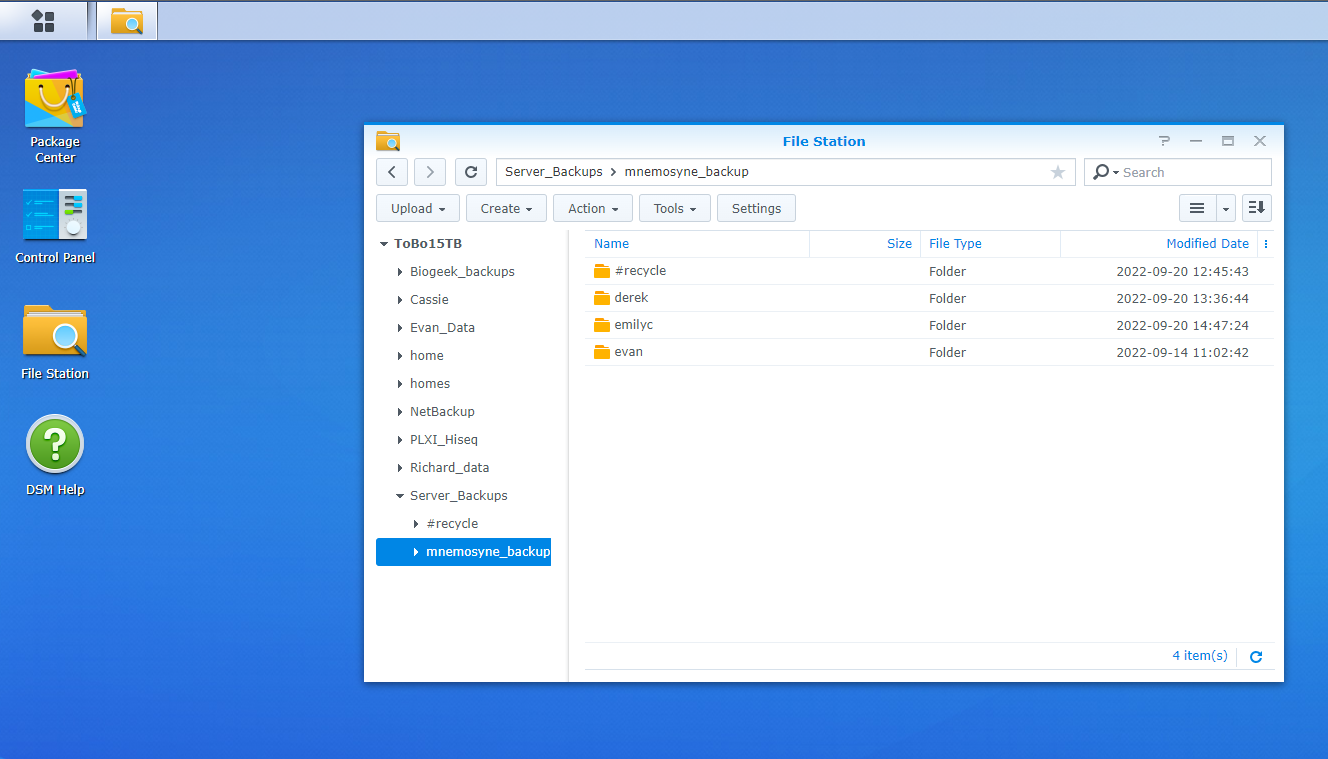
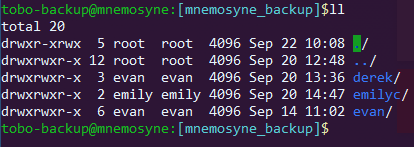
This document serves as a brief tutorial on how to backup sequence data in the ToBo Lab. Currently (Sept-2022) we have a redundant backup system between the mnemosyne server and the ToBo-15TB NAS Synology drive. For those that have an account on the Synology drive, you can continue to store data as you wish on the drive; however, it is not backed up anywhere except the NAS. There is a specific directory on mnemosyne that syncs with ToBo-15TB every couple hours via rsync so that there is a redundant copy should one of the two suffer a loss. In order to take advantage of the redundant system, all you must do is upload your data to /data/mnemosyne_backup/<USER> on mnemosyne (replacing with your name). If there is not a subdirectory with your name, please make one using mkdir <USER> (again replacing with the desired name of your directory). You can then feel free to organize your backup directory however you see fit - for example, my subdirectory /data/mnemosyne_backup/evan/ contains subdirectories at the project level (eDNA, manu, connectivity, etc.). Ensure you are working in your own subdirectory and not adding files directly to /data/mnemosyne_backup/
For those with accounts on mnemosyne, feel free to access the server as you typically would at <USER>@mnemosyne.tobolab.org (thank you Mykle for setting up the ddns on this so we don't have to keep track of the IP address!).
For those without an account and who do not need an account on mnemosyne, you can use the general login for backing up data with tobo-backup@mnemosyne.tobolab.org. The account password is one of the lab default ones - which will be posted on the lab whiteboard, or you can email a lab admin. Currently, this account is set by default to login at /data/mnemosyne_backup/. This user is also set to display the current directory in teal.
Please contact Evan, Emily, or Mykle for server access if you need an account for analyses, after which you can use your own account for data backups. Note that you are not required to create a mnemosyne account if you are only accessing the server for data backup.
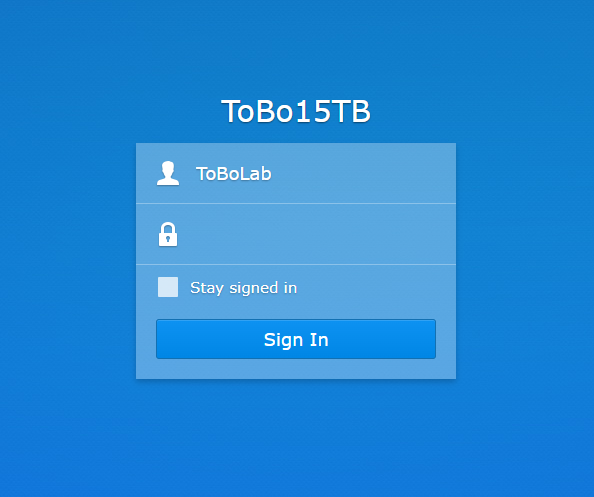
If you already have a Synology account, login through a browser at storage.tobolab.org:5001 (contact admin for current IP or check the slack channel). You can paste this address directly into a browser to get the login prompt. The general lab account is ToBoLab, with the same password as tobo-backup on mnemosyne.
The main task required here is uploading your data to /data/mnemosyne_backup/<USER>. Once your data are uploaded there, it will be synced with a redundant copy being stored on ToBo-15TB (syncs every 4 hours). The upload process can be done in a variety of ways, below are a few suggestions:
If the files are stored on your personal computer, this can be a straightforward way to transfer a directory to mnemosyne. From a terminal on your local machine (for a directory):
scp -r /local/directory <remote_username>@mnemosymne.tobolab.org:/data/mnemosyne_backup/<USER>
Replace <remote_username> in the command above with either your personal mnemosyne account (if you have one) or tobo-backup (if you are using the general lab login).
This command can also be used to transfer from the remote system to your local system, or from one remote system to another. The general recipe is:
scp -r [SOURCE] [DESTINATION]
For our purposes of data backups, [DESTINATION] will always be <USER>@mnemosyne.tobolab.org:/data/mnemosyne_backup/<USER> You can replace [SOURCE] with another one of the servers if you know where your data are stored. For example, if I wanted to backup the goatfish connectivity data I have been analyzing I would use:
scp -r <my_username>@moneta.tobolab.org:/10tb_leviathan/evan/raw_reads/Goatfish_pooled tobo-backup@mnemosyne.tobolab.org/data/mnemosyne_backup/evan/sequence_data
I would then be prompted to input the passwords for each of these accounts on the remote systems.
This option is useful when transferring between two servers when you don't know the exact path of your data. If you ssh into the server your data is stored (for example moneta), you can then navigate to your desired files/directory on moneta you wish to back up. From there:
sftp <remote_username>@mnemosyne.tobolab.org>
You will then be connected to a new session on mnemosyne. Use help to see a list of commands when in an sftp session. Navigation is very similar to a standard unix terminal, while lacking things like Tab complete.
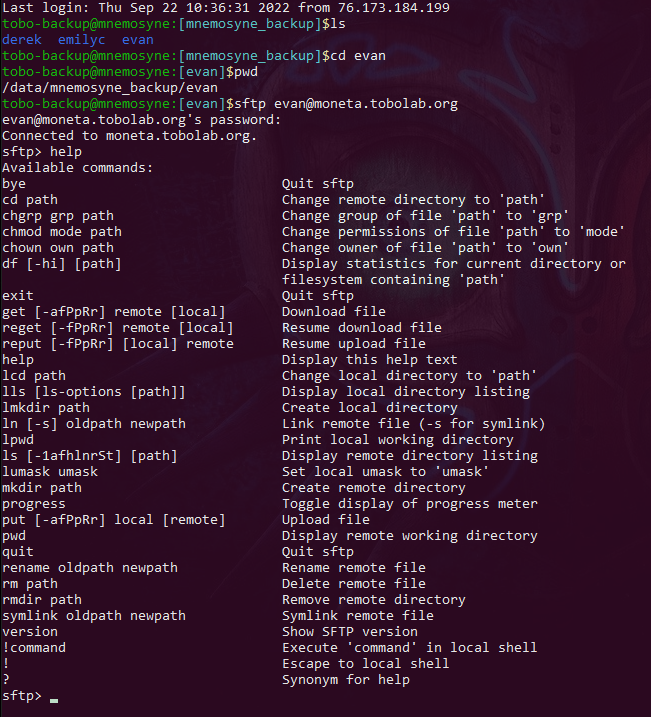
Navigate to the directory containing the desired files you wish to transfer, then use the get command. If you know the path where the files exist, using scp is the easiest option. If you need to poke around the remote system to find your files, sftp allows you to move around the remote system to navigate to your desired files, then use get -R remote [local] from the desired directory to pull everything in that directory to the location you sftp'd from. Note, the [local] path is optional, but to avoid mistakes, we recommend ensuring this matches /data/mnemosyne_backup/<USER> so everything in the backups folder stays clean.
There are plentiful options to do this all in a GUI for both Windows, Linux, and MacOS. I would personally recommend WinSCP for Windows and Cyberduck for Windows and MacOS. Transfer speeds can be much slower since both by default operate by downloading the files to your local system, then uploading them to the destination. Since upload speeds can be abysmally slow, this might not be the best for large transfers, but can be extremely handy for small files. These platforms are also great in that they allow you to drag and drop files to and from your laptop/desktop and the servers. Let us (Evan, Emily, or Mykle) know if you need help configuring these types of resources.
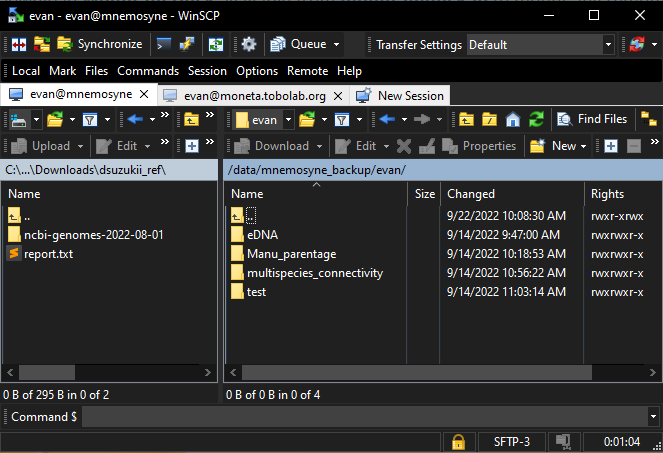
Feel free to pull data from your backup from either location - whatever is more convenient for you. The main advantage of communicating with the server is data transfer speeds are faster. The advantage of using the Synology interface is a GUI explorer in a browser. You can also use WinSCP/Cyberduck to pull a copy of the data from its backed-up location to the system you wish to analyze it on.