A web-based Excel file comparison tool that helps you identify differences between two Excel files quickly and easily. Runs completely in your browser with no server uploads required.


| Upload Interface | Sheet Selection | Unified Diff View |
|---|---|---|
 |
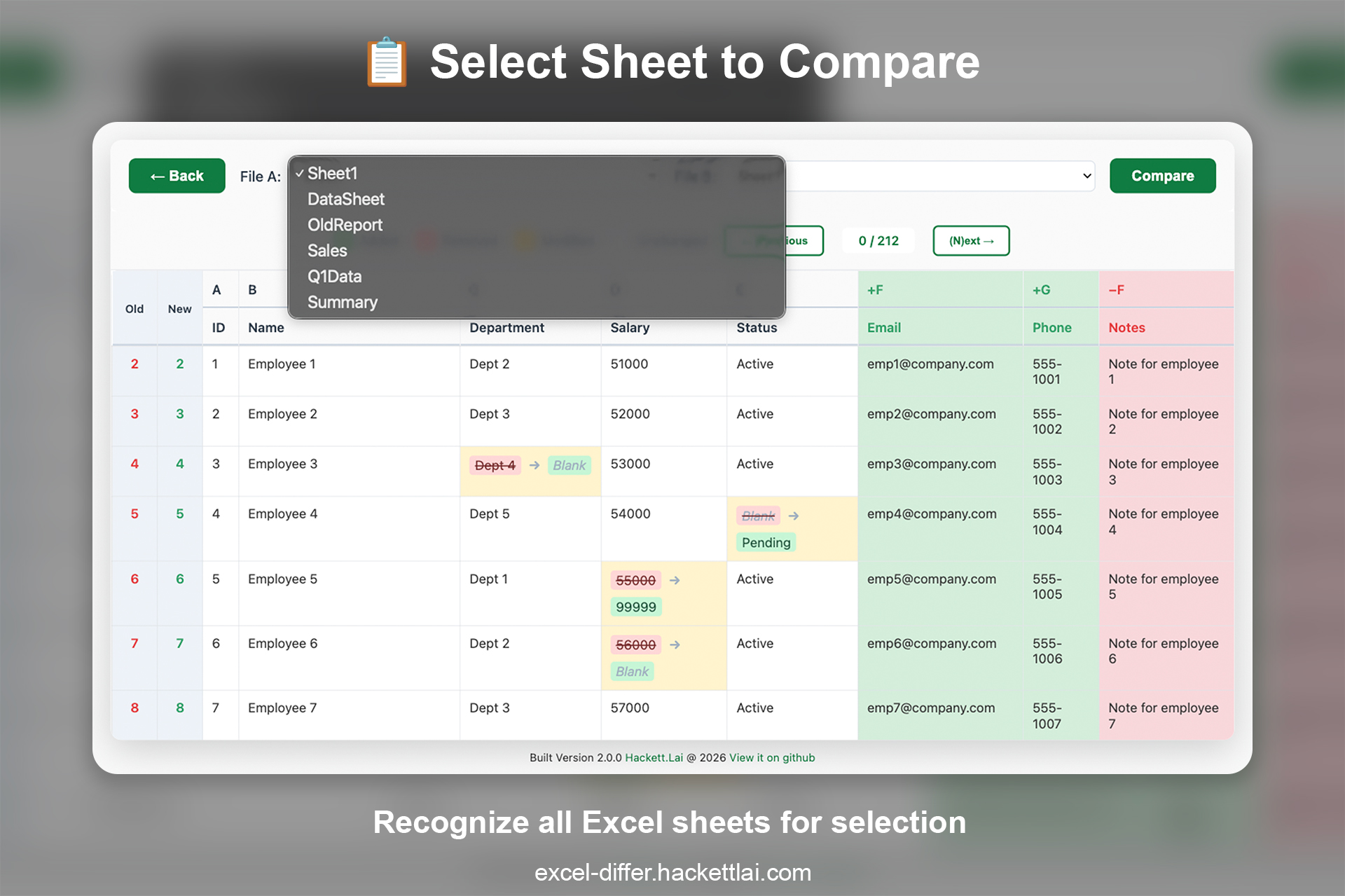 |
 |
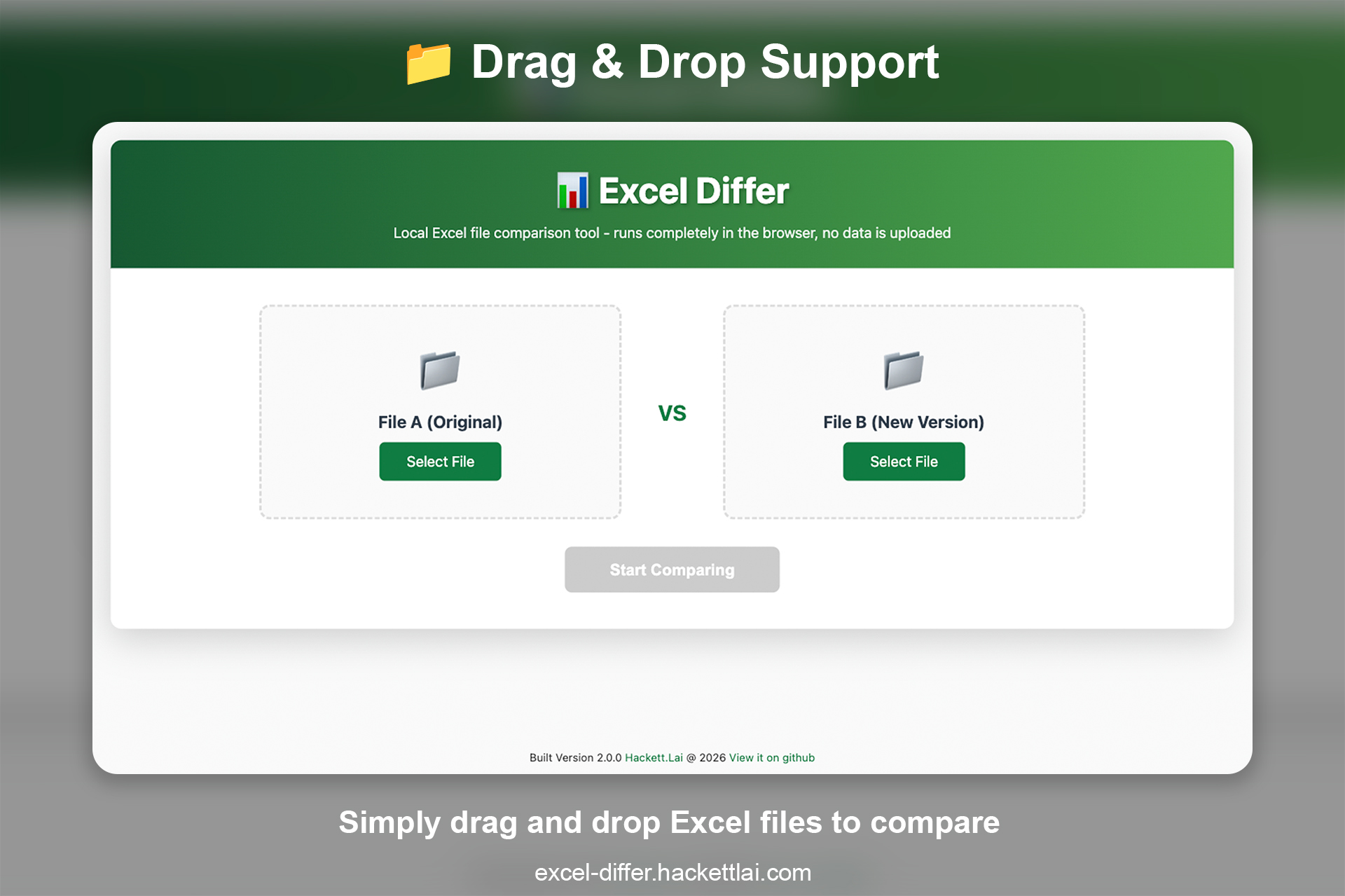
- 📁 Drag & Drop Support - Simply drag and drop Excel files to compare
- 📄 CSV File Support - Supports CSV files with UTF-8 encoding (one-time session warning) ⭐ NEW
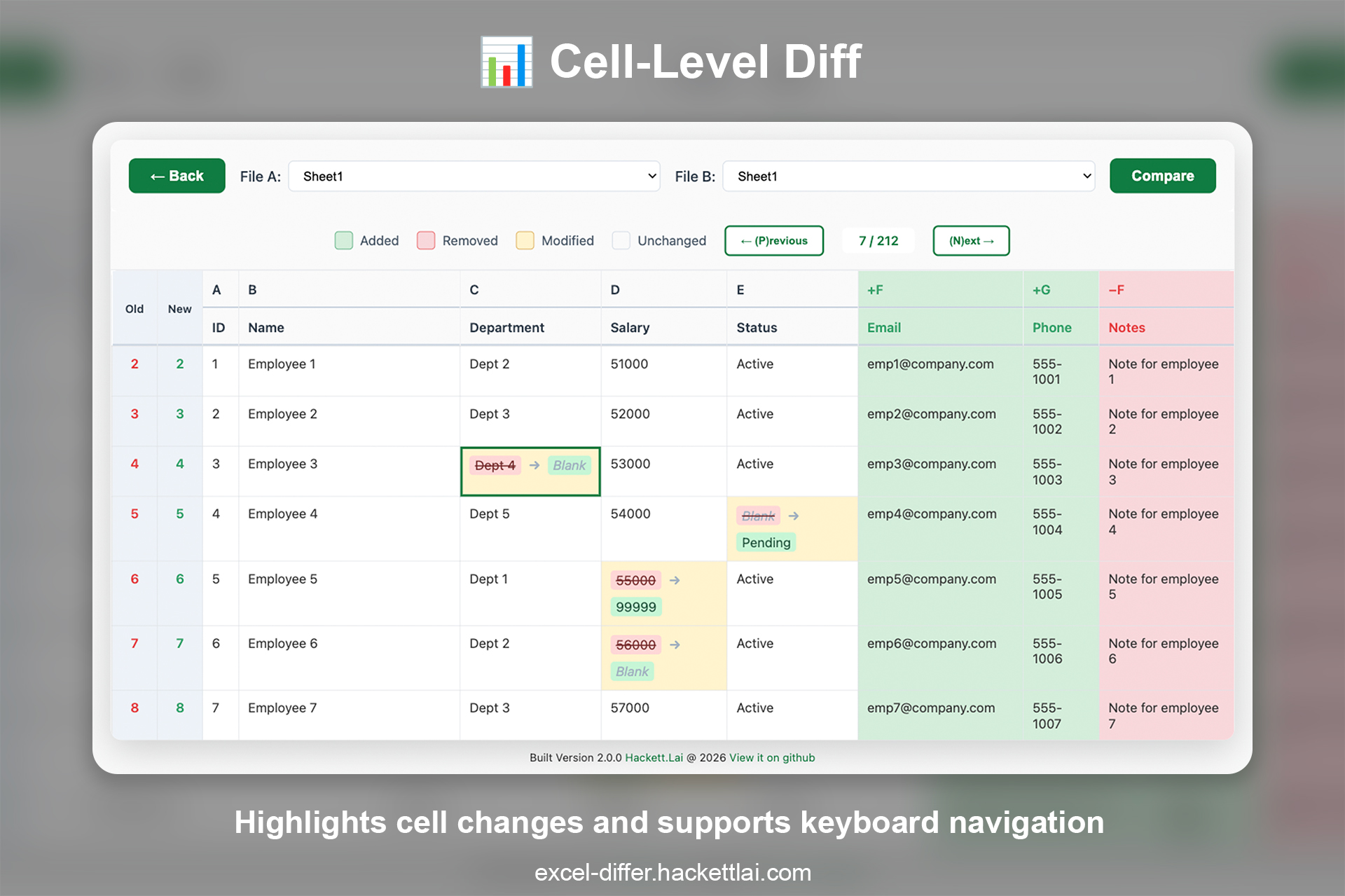
- 🔍 Unified Table View - View differences in a single unified table with old/new row indices
- 📍 Position-based Comparison - Option to match rows strictly by position without requiring a key column ⭐ NEW
- 🎯 Custom Header Row Selection - Choose which row contains headers (default: Row 1)
- 🔑 Key Column Selection - Select which column to use for row matching
- 🤖 Auto-Detect Common Columns - Automatically finds matching columns between files
- 🎯 Smart Column Matching - Intelligently matches columns by header content, not position
- 📊 Cell-Level Diff - Highlights individual cell changes with old → new value display
- 🔄 Column Reordering Handling - Correctly matches columns even when reordered
- 🎯 Change Navigation - Jump between changes with Previous/Next buttons or keyboard shortcuts (P/N)
- 🖱️ Click-to-Navigate - Click any changed cell to jump to that change
- 📍 Visual Change Counter - Track your position through changes (e.g., "5 / 23")
- 💡 Visual Indicators - Color-coded cells for easy identification of changes
- 🔒 100% Local - All processing happens in your browser, no data leaves your device
- 🚀 No Server Required - Runs entirely client-side
-
Interleaved Row Sorting: ⭐ NEW
Deleted rows now appear in context! When rows are deleted, they're inserted immediately before the next corresponding new row position, making it much easier to understand what changed and where.Example:
-
Old File: New File:
-
Row 5: Data A Row 5: Data B
-
Row 6: Data B Row 6: Data C
-
Row 7: Data C
-
Display Order (Interleaved):
-
Row 5 → 5: Data A → Data B (Modified)
-
Row 6 → -: Data B (Deleted, shown before new row 6)
-
Row 7 → 6: Data C (Matched)
-
-
Blank Key Column Handling: ⭐ NEW
When rows have empty key column values, the tool now intelligently matches them using:- Position-based matching (same row number in both files)
- Content comparison (all columns must match exactly)
This prevents false positives when comparing files with occasional blank IDs.
-
Enhanced Row Matching Accuracy: ⭐ NEW
- Fixed row number calculation for non-default header rows
- Improved Excel row number display (correctly shows header row + data row index)
- Better handling of edge cases in key-based matching
- ✅ Fixed row sorting to show deleted rows in logical positions
- ✅ Corrected Excel row number calculation for all header row selections
- ✅ Improved blank key column matching logic
- ✅ Fixed row type detection (matched/added/deleted)
- ✅ Enhanced debug logging for troubleshooting
- ✅ Improved CSV warning UX - now shows only once per browser session
.xlsx- Excel 2007+ files.xls- Excel 97-2003 files.csv- Comma-separated values files (UTF-8 encoding recommended) ⭐ NEW
File Size Limit: 50MB per file
CSV File Notes: ⭐ NEW
- ✅ CSV files must be saved in UTF-8 encoding
⚠️ A one-time warning will appear when uploading CSV files- 💡 If you see garbled Chinese characters, re-save your CSV as UTF-8 in Excel or Notepad++
- 🔄 Warning only shows once per browser session (cleared on page refresh)
No installation required! Just a modern web browser:
- Chrome (recommended)
- Firefox
- Safari
- Edge
- Clone the repository:
git clone https://github.com/HackettLai/excel-differ.git
cd excel-differ- Open
index.htmlin your web browser:
# On macOS
open index.html

# On Linux
xdg-open index.html

# On Windows
start index.html
That's it! No build process or dependencies to install.
-
Upload Files
- Click "Select File" or drag & drop your Excel files into the upload areas
- File A: Original/older version
- File B: New/updated version
-
Start Comparison
- Click the "Start Comparing" button
- Wait for files to be parsed and compared
-
Configure Comparison Settings
a. Select Header Rows (default: Row 1)
- Choose which row contains column headers for File A
- Choose which row contains column headers for File B
- Supports rows 1-50
b. Select Key Column (auto-detected)
- Tool automatically detects common columns between files
- Select which column to use for matching rows
- Example: "Employee ID", "Order Number", "Product Code"
⚠️ If no common columns found, you may need to add one manually
c. Click "Compare" to view differences
-
Review Differences
- View all changes in a unified table
- See old/new row indices for each row
- Modified cells show "old value → new value"
- Added columns marked with green header (+B)
- Deleted columns marked with red header (−D)
-
Navigate Changes
- Click "Previous" or "Next" buttons to jump between changes
- Use keyboard shortcuts:
Pfor previous,Nfor next - Click directly on any changed cell to navigate to it
- Track your position with the change counter (e.g., "5 / 23")
- Row 1: Column letters with indicators
- Normal columns:
A,B,C - Added columns:
+B(green background) - Deleted columns:
−D(red background)
- Normal columns:
- Row 2: Header content
- Shows actual header text from Excel
(Blank Column)for columns without headers
- Old Column: Row number in File A (or
-if row was added) - New Column: Row number in File B (or
-if row was deleted)
- 🟢 Green Background - Cell in added column or added row
- 🔴 Red Background - Cell in deleted column or deleted row
- 🟡 Yellow Background - Cell value was modified (shows old → new)
- ⚪ White Background - Unchanged cell
- Modified cells:
old value → new value - Empty cells: Shown as
Blankin italic gray text - Normal cells: Display current value
excel-differ/
├── index.html              # Main HTML file
├── styles.css              # Styling and layout
├── js/
│   ├── main.js            # Application entry point and controller
│   ├── fileHandler.js     # File upload, drag-and-drop, validation
│   ├── excelParser.js     # Excel parsing using SheetJS
│   ├── diffEngine.js      # Core comparison algorithm
│   ├── diffViewer.js      # Unified table renderer and navigation
│   └── copyright.js       # Copyright year management
└── README.md              # This file
- Pure JavaScript (ES6+) - No frameworks, vanilla JS with modules
- SheetJS (xlsx) - Excel file parsing
- HTML5 - Modern web standards
- CSS3 - Styling, animations, and responsive design
- File API - Browser-native file handling
- Keyboard API - Keyboard shortcut support
| Browser | Version | Status |
|---|---|---|
| Chrome | 90+ | ✅ Fully Supported |
| Firefox | 88+ | ✅ Fully Supported |
| Safari | 14+ | ✅ Fully Supported |
| Edge | 90+ | ✅ Fully Supported |
Problem: Traditional diff tools show all deletions at the top or bottom, making it hard to understand context.
Solution: Excel Differ uses intelligent interleaved sorting:
- Matched and Added Rows: Follow new file's order
- Deleted Rows: Inserted before the next new row that corresponds to a later old row position
Algorithm:
- For matched/added rows:
sortKey = newIndex × 1000 - For deleted rows:
sortKey = (next new row's corresponding old position) × 1000 - 500
Example:
Old File:              New File:
Row 5: Product A       Row 5: Product B
Row 6: Product B       Row 6: Product C
Row 7: Product C       Row 7: Product D
Row 8: Product D

If "Product A" is deleted:

Display Order:
5 → -:  Product A      (Deleted, shown before row 5)
6 → 5:  Product B      (Matched)
7 → 6:  Product C      (Matched)
8 → 7:  Product D      (Matched)
This creates a natural reading flow where deletions appear exactly where they belong contextually.
The tool matches columns by header content, not position:
- Header-Based Matching: Columns with identical header text are matched
- Example: If "Email Address" moves from column G to H, it's still matched correctly
- Case-Insensitive Matching: "Email" matches "email", "EMAIL", etc.
- Reordering Tolerance: Column position changes don't trigger false positives
- Cells are compared based on what column they logically belong to
- Reordered columns are NOT marked as added/deleted
- True Add/Delete Detection: Only reports genuine column additions/deletions
- Added column: Header exists in File B but not in File A
- Deleted column: Header exists in File A but not in File B
Challenge: What happens when key column values are blank?
Solution: Multi-step intelligent matching:
- Non-blank keys: Match by key value (normal behavior)
- Blank keys in old file:
- Check if same position exists in new file with blank key
- Compare all column values for exact match
- If match: Treat as same row (matched)
- If no match: Treat as separate rows (deleted + added)
Example:
File A:                File B:
Row  | ID | Name       Row  | ID | Name
  5  |    | Alice        5  |    | Alice   ← Matched (blank ID + content match)
  6  |    | Bob          6  |    | Charlie ← No match (different content)

Result:
Row 5 → 5:  Alice      (Matched - blank ID but content identical)
Row 6 → -:  Bob        (Deleted)
Row - → 6:  Charlie    (Added)
This prevents treating identical blank-ID rows as different.
Key-Based Matching (Recommended) Uses a user-selected Key Column for matching:
- Select Key Column: Choose any column that exists in both files
- Auto-Detection: Tool finds common columns automatically
- Case-Insensitive: "ID" matches "id"
- Blank Key Handling: Uses position + content matching for blank keys
Example:
If "Employee ID" is selected as key:

File A:                File B:
Row | ID   | Name      Row | ID   | Name
 10 | 1001 | Alice      10 | 1001 | Alice   ← Matched by ID
 11 | 1002 | Bob        11 | 1003 | Charlie ← Different IDs = different rows
 12 | 1003 | Charlie    12 | 1002 | Bob     ← Matched by ID (reordered)

Result:
10 → 10: Alice         (Matched)
11 → -:  Bob (ID 1002) (Deleted)
12 → 12: Bob (ID 1002) (Matched, reordered)
-  → 11: Charlie       (Added)
Position-Based Matching Select "(Use Row Position)" to match rows strictly by position:
- No Key Required: Works without unique identifiers
- Simple Comparison: Row N in File A matches Row N in File B
- Best For: Simple datasets, fixed-structure reports
Example:
File A:                File B:
Row 5: Alice          Row 5: Bob     ← Position 5 = Modified
Row 6: Bob            Row 6: Bob     ← Position 6 = Unchanged

Result:
5 → 5: Alice → Bob    (Modified)
6 → 6: Bob            (Unchanged)
Quickly navigate through all cell-level changes:
- Previous/Next Buttons - Navigate sequentially through changes
- Keyboard Shortcuts - Press
Pfor previous,Nfor next- Only active when not typing in input fields
- Works globally across the page
- Click Navigation - Click any changed cell to jump to that change
- Updates current position in navigation sequence
- Automatically scrolls cell into view
- Change Counter - Shows current position and total changes (e.g., "5 / 23")
- Updates dynamically as you navigate
- Displays
0 / 0when no changes exist
- Visual Highlight - Briefly highlights the target cell when navigating
- 2-second highlight with CSS animation
- Smooth scroll with centering
- Efficient diff algorithm with minimal memory footprint
- Lazy DOM manipulation for large spreadsheets
- Optimized scroll event handling
- Smart cell collection for navigation
Excel Differ uses a multi-step pipeline to detect changes:
- File Parsing - Reads Excel files using SheetJS into JavaScript objects
- Column Matching - Matches columns by header content (not position)
- Row Matching - Matches rows using user-selected Key Column as unique identifier
- Cell Comparison - Compares matched cells and detects modifications
Key Features:
- ✅ Handles column reordering (matches by header name)
- ✅ Handles row reordering (matches by Key Column value)
- ✅ Detects added/deleted columns and rows
- ✅ Highlights modified cells with old → new display
Important Design Decision:
- Row matching relies on Key Column values - This enables accurate detection of row reordering, but requires the Key Column to contain stable unique identifiers
- If Key Column values change, rows cannot be matched correctly (see Limitations for details)
📖 Read detailed technical documentation →
| Key | Action | Description |
|---|---|---|
P |
Previous Change | Jump to previous changed cell |
N |
Next Change | Jump to next changed cell |
Note: Shortcuts are disabled when typing in input/textarea/select elements
Issue: Rows are matched using a single Key Column (user-selected)
Requirements:
- Must select a Key Column that exists in both files
- Key Column should contain stable, unique identifiers
- No common columns = Cannot compare rows
Impact:
- If Key Column values change between files, rows cannot be matched
- All cells in unmatched rows may show as added/deleted
Example: File A (using "ID" as key):
|  ID |  Name | Age|
| 101 | Peter | 34 |
File B (ID changed):
|  ID |  Name | Age|
| 102 | Peter | 34 | ← Different ID!
Result: Treated as different rows (one deleted, one added) ❌
Solutions:
- ✅ Use stable IDs (employee ID, product code, order number)
- ✅ Add an ID column if your data doesn't have unique keys
- ✅ Pre-process data to ensure consistent IDs before comparison
- ✅ Select the correct Key Column that best identifies your rows
⚠️ Avoid using auto-incremented numbers that change between versions
Issue: Maximum 50MB per file
Reason: Browser memory limitations
Solutions:
- Split large files into smaller chunks
- Filter to relevant date ranges before comparison
- Remove unnecessary columns before uploading
- ❌ Cell formatting (colors, fonts, borders)
- ❌ Formulas (only computed values)
- ❌ Charts and images
- ❌ Merged cell information
- ❌ Data validation rules
- ❌ Conditional formatting rules
Alternative: Use Excel's built-in "Compare and Merge Workbooks" for format comparison
- Version Control: Compare different versions of Excel reports
- Data Auditing: Verify data changes in financial spreadsheets
- Quality Assurance: Validate data migrations or transformations
- Collaboration: Review changes made by team members
- Configuration Management: Track changes in Excel-based config files
- Format Comparison: Use Excel's built-in compare for formatting changes
- Large Dataset Analysis: Consider database tools for millions of rows
- Real-Time Collaboration: Use Google Sheets or Excel Online instead
- Formula Debugging: Use Excel's formula auditing tools
Files won't upload
- Check file size (must be under 50MB)
- Ensure file format is .xlsx or .xls
- Try re-saving the file in Excel
Comparison is slow
- Large files may take 10-30 seconds to process
- Close other browser tabs to free up memory
- Try comparing smaller sections of data
Changes not detected
- Ensure both files have matching sheet names
- Check that column headers match exactly
- Verify data types are consistent
Navigation buttons disabled
- No changes detected in selected sheets
- Try selecting different sheets to compare
No common columns found
- Check that both files have at least one column with identical header names
- Headers are case-insensitive ("Email" matches "email")
- Try renaming columns in Excel to match before uploading
- Ensure both files use the same header row (adjust Header Row selection)
Row numbers seem wrong
- Check that you selected the correct Header Row for each file
- Excel row numbers are calculated as: Header Row + 1 + Data Row Index
- Example: If Header Row = 3, first data row should be 4
Contributions are welcome! Please feel free to submit a Pull Request.
- Fork the repository
- Create your feature branch (
git checkout -b feature/AmazingFeature) - Commit your changes (
git commit -m 'Add some AmazingFeature') - Push to the branch (
git push origin feature/AmazingFeature) - Open a Pull Request
- Use ES6+ JavaScript with modules
- Follow existing code structure and naming conventions
- Add comprehensive comments for complex logic
- Test with various Excel file formats and sizes
- Ensure browser compatibility
This project is licensed under the MIT License - see the LICENSE file for details.
- SheetJS for the excellent Excel parsing library
- Inspired by diff tools like Beyond Compare, WinMerge, and Git diff
- Built with assistance from Claude AI (Anthropic)
If you encounter issues or have questions:
⭐ If you find this tool useful, please consider giving it a star on GitHub!
Made with ❤️ by Hackett.Lai