Containers offer a similar level of isolation for installing and configuring binaries/libraries as virtual machines, but they differ in their approach. Instead of virtualizing at the hardware layer, containers utilize native Linux features like cgroups and namespaces to provide isolation while sharing the same kernel. This lightweight approach allows for faster startup times, improved resource efficiency, and easier scalability compared to traditional virtual machines.
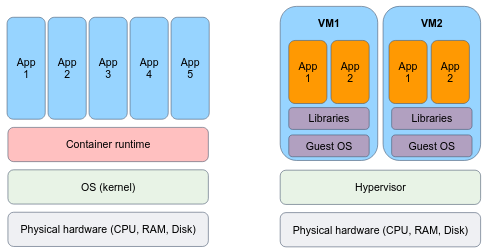
Containers are an abstraction at the app layer that packages code and dependencies together. Multiple containers can run on the same machine and share the OS kernel with other containers, each running as isolated processes in user space. Containers take up less space than VMs (container images are typically tens of MBs in size), can handle more applications and require fewer VMs and Operating systems.
Virtual machines (VMs) are an abstraction of physical hardware turning one server into many servers. The hypervisor allows multiple VMs to run on a single machine. Each VM includes a full copy of an operating system, the application, necessary binaries and libraries – taking up tens of GBs. VMs can also be slow to boot.
The technology of containers plays an important role in modern software development and deployment, for several reasons:
- Lightweight and Portable: Containers provide a lightweight and portable way to package applications and their dependencies. They encapsulate an application and its runtime environment, including libraries and dependencies, into a single container image that can be run consistently across different environments and infrastructure. You build an image once, and can run it as containers everywhere.
- Isolation and Resource Efficiency: Containers offer process-level isolation, ensuring that each application runs in its own isolated environment. This isolation provides enhanced security and eliminates conflicts between applications. Containers also enable efficient utilization of system resources by sharing the host operating system kernel and avoiding the overhead of running a full virtual machine for each application.
- Consistent and Reproducible Builds: Containers enable consistent and reproducible builds by capturing the entire application stack, including dependencies and configurations, in a container image. This image can be versioned and shared, ensuring that the application can be built and deployed in the same way across different environments, making it easier to manage and deploy applications consistently.
- Scalability and Elasticity: Containers facilitate scalability and elasticity by allowing applications to be deployed and managed in a distributed and orchestrated manner. Container orchestration platforms like Kubernetes enable automatic scaling, load balancing, and high availability of containerized applications, making it easier to handle varying workloads and ensure application availability.
- DevOps and Continuous Integration/Deployment (CI/CD): Containers align well with DevOps principles and enable streamlined CI/CD workflows. Containers provide a consistent environment for development, testing, and production, making it easier to package and deploy applications across different stages of the software development lifecycle. Containers can be integrated with CI/CD pipelines to automate the build, test, and deployment processes, improving development velocity and agility.
A "container image" (or shortly, image) is a lightweight, standalone, executable package of software that includes everything needed to run an application: code, runtime, system tools, system libraries and settings. You can transfer images from one machine to the other. Every machine is able to "run the image" without the need to install the application dependencies, define environment variables and networking settings.
A container is a single running instance of an image. You can create, start, stop, move, or delete a container, and they can be run easily and reliably from one computing environment to another. The computer that runs the container is frequently referred to as a host machine, because it "hosts" containers.
By default, a container is relatively well isolated from other containers and its host machine. You can control how isolated a container's network, storage, or other underlying subsystems are from other containers or from the host machine.
A container, as we mentioned, is defined by its image as well as any configuration options you provide to it when you create or start it. When a container is removed, any changes to its state that are not stored in persistent storage disappear.
Under the hoods, containers are merely a linux process.
But they are unique processes that "live" in an isolated environment. By this means, the process "believes" that he is the only process in the system, he is containerized. Containers are a technology that leverages the Linux kernel's features to provide lightweight and isolated environments for running applications.
Linux containers utilize several key components:
- Namespaces: Linux namespaces provide process-level isolation by creating separate instances of various resources, such as the process ID namespace, network namespace, mount namespace, and more. Each container has its own isolated namespace, allowing processes within the container to have their own view of system resources.
- Control Groups (cgroups): Control groups, or cgroups, enable resource management and allocation by imposing limits, prioritization, and accounting on system resources such as CPU, memory, disk I/O, and network bandwidth. Cgroups ensure that containers do not exceed their allocated resources and provide fine-grained control over resource utilization.
Docker is an open platform for developing, building and shipping images, and running containers.
Docker container technology was launched in 2013 as an open source Docker Engine.
Docker uses a client-server architecture. The Docker client talks to the Docker daemon, which does the heavy lifting of building, running, and distributing your Docker containers. The Docker client and daemon can run on the same system, or you can connect a Docker client to a remote Docker daemon. The Docker client and daemon communicate using a REST API, over UNIX sockets or a network interface. Another Docker client is Docker Compose, which lets you work with applications consisting of a set of containers.
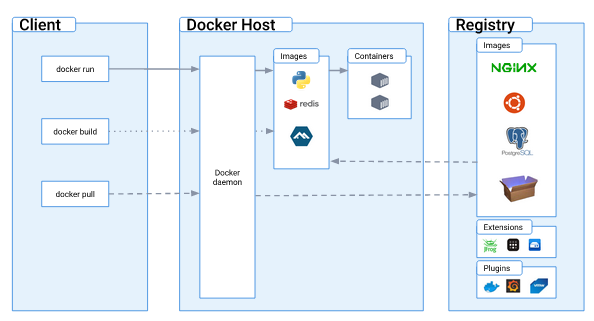
- The Docker daemon (
dockerd) listens for Docker API requests and manages Docker objects such as images, containers, networks, and volumes. - The Docker client (
docker) is the primary way that many Docker users interact with Docker. When you use commands such as docker run, the client sends these commands to dockerd, which carries them out. - A Docker registry stores Docker images. Docker Hub is a public registry that anyone can use, and Docker is configured to look for images on Docker Hub by default. You will even run your own private registry later on in the course.
Please install Docker if you haven't done it before.
Tip: you can add your user to the docker group, so you could use the docker command without sudo:
sudo usermod -aG docker $USERUpon up and running docker installation, the docker version command output may look like:
Client: Docker Engine - Community
 Version:           20.10.22
 API version:       1.41
 Go version:        go1.18.9
 Git commit:        3a2c30b
 Built:             Thu Dec 15 22:28:02 2022
 OS/Arch:           linux/amd64
 Context:           default
 Experimental:      true

Server: Docker Engine - Community
 Engine:
  Version:          20.10.22
  API version:      1.41 (minimum version 1.12)
  Go version:       go1.18.9
  Git commit:       42c8b31
  Built:            Thu Dec 15 22:25:51 2022
  OS/Arch:          linux/amd64
  Experimental:     false
 containerd:
  Version:          1.6.14
  GitCommit:        9ba4b250366a5ddde94bb7c9d1def331423aa323
 runc:
  Version:          1.1.4
  GitCommit:        v1.1.4-0-g5fd4c4d
 docker-init:
  Version:          0.19.0
  GitCommit:        de40ad0
Note that docker is running as a service on your system, hence can be controlled by systemctl:
$ sudo systemctl status docker
● docker.service - Docker Application Container Engine
     Loaded: loaded (/lib/systemd/system/docker.service; disabled; vendor preset: enabled)
     Active: active (running) since Sun 2023-05-07 09:56:45 IDT; 5min ago
TriggeredBy: ● docker.socket
       Docs: https://docs.docker.com
   Main PID: 261600 (dockerd)
      Tasks: 123
     Memory: 209.5M
     CGroup: /system.slice/docker.service
             └─261600 /usr/bin/dockerd -H fd:// --containerd=/run/containerd/containerd.sock

May 07 09:56:39 hostname dockerd[261600]: time="2023-05-07T09:56:39.509330916+03:00" level=warning msg="Your kernel does not support CPU realtime scheduler"
May 07 09:56:39 hostname dockerd[261600]: time="2023-05-07T09:56:39.509350949+03:00" level=warning msg="Your kernel does not support cgroup blkio weight"
May 07 09:56:39 hostname dockerd[261600]: time="2023-05-07T09:56:39.509365744+03:00" level=warning msg="Your kernel does not support cgroup blkio weight_device"
May 07 09:56:39 hostname dockerd[261600]: time="2023-05-07T09:56:39.533460844+03:00" level=info msg="Loading containers: start."
May 07 09:56:42 hostname dockerd[261600]: time="2023-05-07T09:56:42.942065068+03:00" level=info msg="Default bridge (docker0) is assigned with an IP address 172.17.0.0/16. Daemon option --bip can be used to set a preferred IP address"
May 07 09:56:43 hostname dockerd[261600]: time="2023-05-07T09:56:43.248511892+03:00" level=info msg="Loading containers: done."
May 07 09:56:44 hostname dockerd[261600]: time="2023-05-07T09:56:44.943477277+03:00" level=info msg="Docker daemon" commit=42c8b31 graphdriver(s)=overlay2 version=20.10.22
May 07 09:56:44 hostname dockerd[261600]: time="2023-05-07T09:56:44.972157071+03:00" level=info msg="Daemon has completed initialization"
May 07 09:56:45 hostname dockerd[261600]: time="2023-05-07T09:56:45.533037228+03:00" level=info msg="API listen on /var/run/docker.sock"
May 07 09:56:45 hostname systemd[1]: Started Docker Application Container Engine.
From docker's service status output we can learn a few important properties of the docker client and daemon.
When the Docker client (docker) and daemon (dockerd) are on the same machine (usually the case),
they communicate using a UNIX socket located in /var/run/docker.sock, typically via RESTful API endpoints.
When the client and daemon are not on the same machine, they communicate over the internet via HTTPS protocol.
What else can we learn about the docker daemon? that it does not run containers itself! Docker relies on the containerd service to manage containers lifecycle.
Containerd is an open-source container runtime that provides a high-level interface for managing container lifecycle and execution. It is serving as the underlying runtime for various container platforms, including Docker.
Containerd, in turn, uses runc as the default OCI-compliant runtime for actually running containers. Containerd utilizes runc to execute the container processes, manage resource isolation, and handle low-level interface container operations according to the OCI specification.
To summarize, containers are not exclusive to Docker, they are a broader technology and concept that existed before Docker's popularity. Docker popularized and simplified the adoption of containers by providing a user-friendly interface and tooling, but there are alternative container runtimes and platforms available, such as Podman, that leverage containers for application deployment and management.
Under the hood, runc does the dirty job of running containers:

Image source: https://mkdev.me/posts/the-tool-that-really-runs-your-containers-deep-dive-into-runc-and-oci-specifications
In a moment, you'll run you first container, this is the execution order of the different components that responsible for the container execution:

The Docker "Hello World" container is a simple and lightweight container that is often used to verify if Docker is properly installed and functioning on a system. It is based on the official Docker image called hello-world.
docker run hello-worldThe hello-world image is an example of minimal containerization with Docker.
It has a single hello.c file responsible for printing out the message you're seeing on your terminal.
The below program executes a CPU intensive task (100000 factorial) and prints the number calculations per seconds.
Save it as a .py file and execute it in the background.
import math
import time

start_time = time.time()
count = 0

while True:
    math.factorial(100000)
    count += 1
    current_time = time.time()
    elapsed_time = current_time - start_time
    if elapsed_time >= 1:  # If one second has elapsed
        print("Calculations per second:", count)
        count = 0
        start_time = current_time
We want to limit the CPU consumption of the program.
For cgroups-v2 instructions:
- Create a new cgroup directory for CPU:
sudo su
mkdir -p /sys/fs/cgroup/demo
The cpu.max file in the cgroup directory specifies the total amount of CPU time that tasks within that cgroup can utilize.
The values you are writing to cpu.max represent two parameters: period and quota. E.g.:
#     quota  period
echo "500000 1000000" > /sys/fs/cgroup/demo/cpu.max
quota specifies the total amount of CPU time that the tasks in a cgroup can use during a period period.
For example, when setting period of 1000000 microseconds (1 sec) quota of 500000 microseconds (0.5 sec), we limit the CPU usage to 50%.
- Change the above commands such that your process would be using 10% of the CPU.
- Move your python program processes PID to control into the cgroup:
echo 1234 > /sys/fs/cgroup/demo/cgroup.procsChange 1234 to the PID.
For cgroups instructions:
For CPU resource control, you need to use the CPU subsystem. Here's how you can do it:
- Create a cgroup directory for CPU:
sudo su
mkdir -p /sys/fs/cgroup/cpu/demo
This creates a directory named demo under /sys/fs/cgroup/cpu/ where you can control CPU-related parameters.
cpu.cfs_quota_us specifies the total amount of CPU time that the tasks in a cgroup can use during a cpu.cfs_period_us period.
For example, to limit the CPU usage to 50%, you would set cpu.cfs_quota_us to half of cpu.cfs_period_us:
# Set the period to 100000 microseconds (100ms)
echo 100000 > /sys/fs/cgroup/cpu/demo/cpu.cfs_period_us
# Set the quota to 50000 microseconds (50ms)
echo 50000 > /sys/fs/cgroup/cpu/demo/cpu.cfs_quota_us
This sets the period to 100 milliseconds and the quota to 50 milliseconds, effectively limiting the CPU usage to 50%.
- Change the above commands such that your process would be using 10% of the CPU.
- Move your python program processes PID to control into the cgroup:
echo 1234 > /sys/fs/cgroup/cpu/demo/tasksChange 1234 to the PID.
- Watch how the process is being slowed down.
- Stop the program and clean demo cgroup:
# for cgroups
rmdir /sys/fs/cgroup/cpu/demo

# for cgroups-v2
rmdir /sys/fs/cgroup/demoAs you may know, Docker is designed in client-server architecture, where both sides are not necessarily running on the same machine. Your goal is to run the docker daemon (the server) of a different machine, and communicate with it from your local machine.
Feel free to find useful tutorials either in Docker's official docs or any other resource. You can use some EC2 instances as the remote machine.